Log In
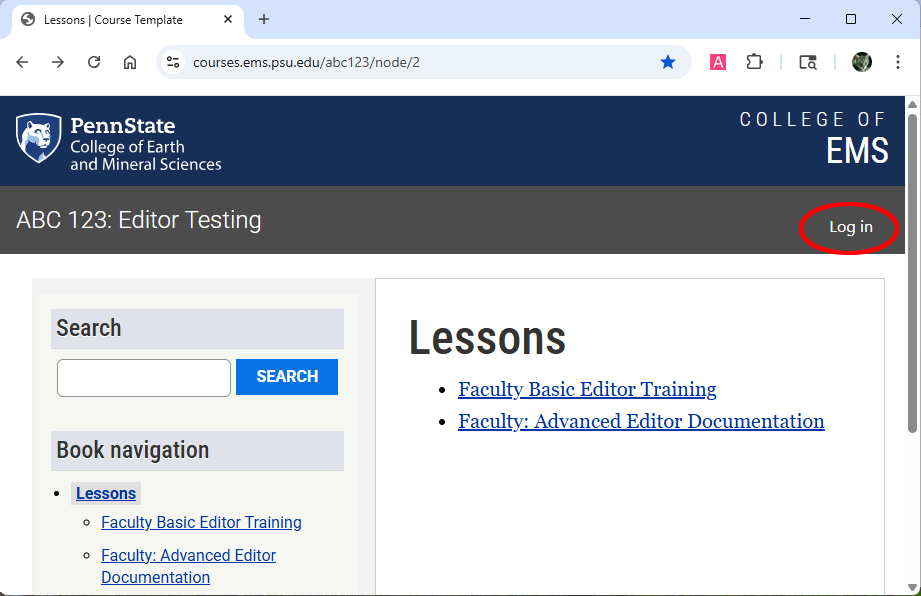
- Click the “Log in” link in the top right of the course.
- Log in with your Penn State credentials.
Edit
- At the top of any content page, click Edit
 . The page content will open in the text editor (CKEditor 5).
 - Edit or enter content in the Body window using the toolbar provided.
- The Create new revision toggle
 should always be "on“ (green).
 - If you do not see the Create new revision toggle, click the Show Sidebar panel icon
 .
. - Use Full screen mode
 to expand the CKEditor window to fill the monitor for easier editing.
 - To return to normal view and to save your edits, exit Full Screen mode by clicking on the Full screen icon again.
Copy and Paste
Copying and pasting content from AI tools or other sources can introduce hidden formatting and code (e.g., <span>, inline styles, ). This may cause unexpected styling, accessibility, and responsiveness issues and conflict with course templates.
To avoid these issues, paste content as plain text:
- Windows: Ctrl + Shift + V
- Mac: Cmd + Shift + V
- Or paste into a plain text editor (e.g., Notepad or TextEdit) first, then copy into Drupal
Important
Do not copy and paste content directly from AI tools, Word documents, or web pages without removing formatting. This can introduce errors that are difficult to troubleshoot.
Save

- To save your work while editing use Save and Edit (three vertical dots next to Preview)
 or use keyboard shortcuts.
 - To save your work and exit the editor, use Save
 .
. - Use Preview
 to review your work before saving.
 - To exit a page without saving your changes, select View
 .
.
Add lessons and pages
Adding lessons and pages is easy!
Add a new lesson
- Navigate to the course Home Page.
- Scroll to the bottom of the page.
- Select Add child page to create a new lesson.
- Add the lesson title in the Title box and the lesson introduction in the Body section.
- To save your work and exit, use Save .
Add a new book page to a lesson
- Go to the top level of the lesson for which you want the new page.
- Scroll to the bottom of the page.
- Select Add child page to insert a Book Page within the lesson structure.
- Add the page title in the Title box and the page content in the Body section.
- To save your work and exit, use Save .
NOTE: The new page will likely appear in the middle of the lesson. Rearranging pages in Drupal 10 is complex - see your learning designer for assistance with moving the new book page.
Add a basic page, a DataCamp page, or an H5P page
To add a page:
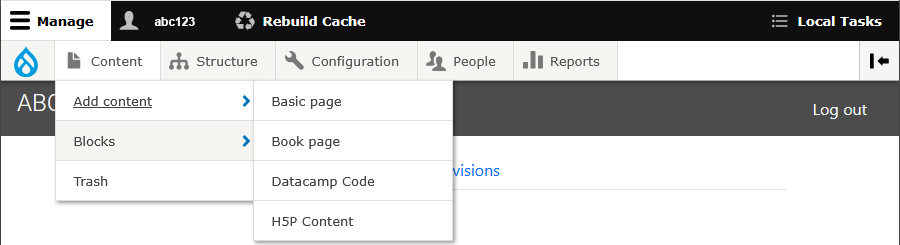
- Click Manage in the upper-left black menu bar.
- Select Content.
- Click Add content.
- Choose the appropriate content type from the list:
- A Basic page does not appear in the navigation. It should only be used in consultation with your learning designer.
- A Book page appears in the navigation.
- Datacamp allows users to embed interactive R and Python code editors directly into their content. Please work closely with your learning designer to create these elements.
- H5P Content is interactive content you can embed on pages. It should only be used in consultation with your learning designer.
Hide/unpublish pages
Hidden pages remain in the navigation with a strikethrough that only editors can see. A hidden page is searchable by editors but not by site visitors (e.g., students).
When viewing a hidden page, editors will see a yellow banner at the top that says, “This content is currently hidden and not displayed to certain user roles.”

To hide content:
- Edit the page.
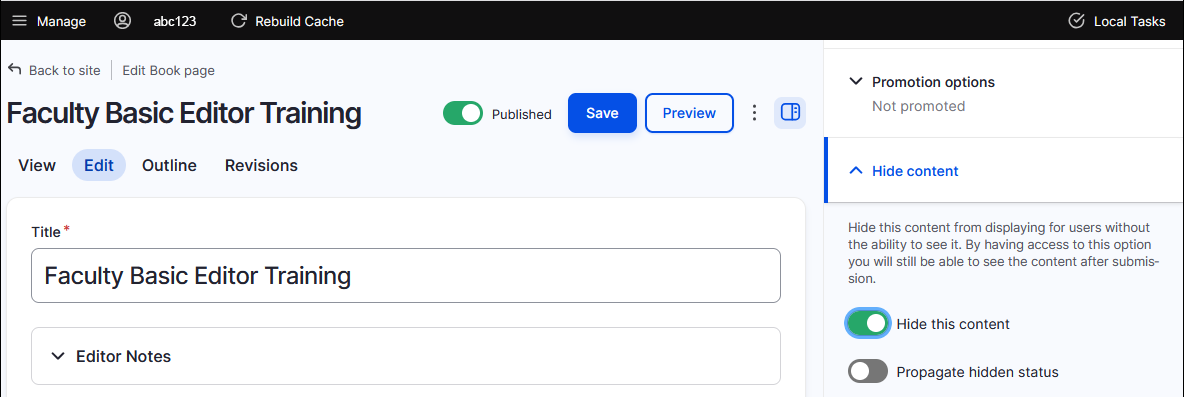
- Open the Hide content section in the right-hand navigation. If the sidebar isn’t open, click the Show sidebar panel icon in the upper right.
- Toggle Hide this content to on (green) to hide the page.
- To hide all associated child pages, toggle Propagate hidden status after hiding the top-level page.
Best Practices (hide/unpublish)
Hide
- Use hidden pages sparingly. Drupal 10 is not intended to serve as a content repository. Your learning designer can help you store unused content safely in another location.
- You should propagate the hidden status of child pages when applicable. If not propagated, child pages will not be visible to visitors but will appear unhidden to editors, creating a false sense of the lesson navigation. They will also be searchable.
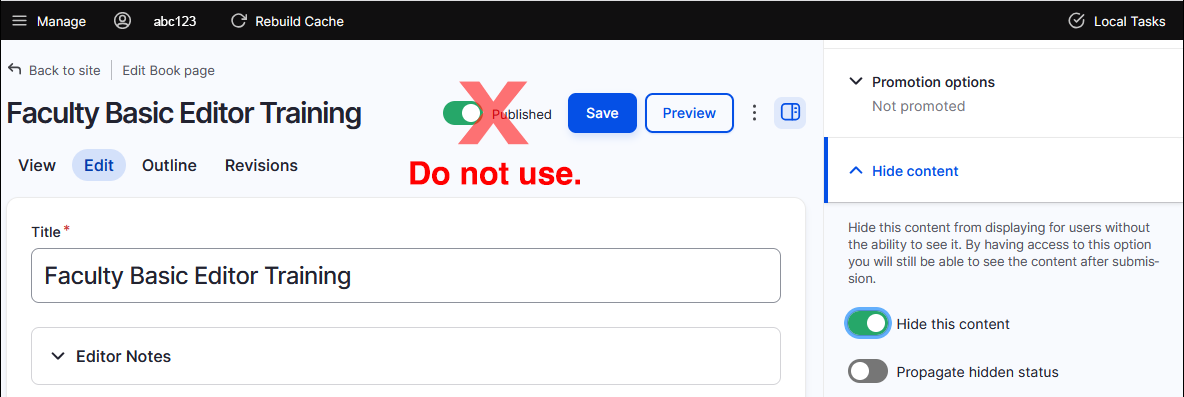
Unpublish (do not use!)
Do NOT use Unpublish! It does not work. Students will still be able to see unpublished content.
View, sort, and filter a list of content
To view and sort a list of all the content:
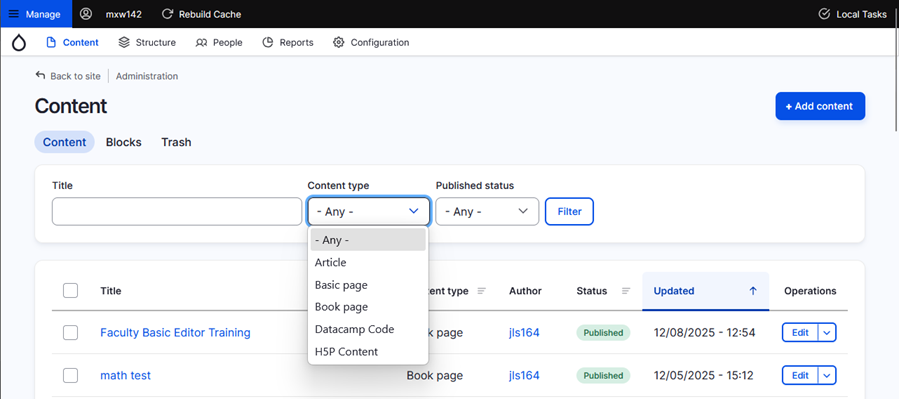
- Click Manage and select Content in the resulting horizontal menu to view and sort a list of all the content, including page title, original page author, the status, and when it was last updated.
- Filter the content by content type (Book Page, Basic Page, Datacamp Code, and H5P Content).
- Click on the page title to go directly to that page.
- Click the edit button on the right to open the edit window from this view.
Revisions: Review and revert to a previous version
Use the Revisions tab  at the top of the page to view a chronological list of page revisions. The list includes the date and time the page was updated and the USERID of the person who made the edit. You can compare versions and restore previous versions.
- Click on the date to see what the page looked like at that time. Use the back button to return to the current revision.
- Click on two dates to compare the revisions over time. To do so, select a Source revision and a Target revision and click the Compare selected revisions button
 on the left side of the page.
 - Click Revert next to the version you want to restore.
Important Note
The create new revision button should ALWAYS be toggled ON for this to work as designed.
URL aliases (do not use!)
Please DO NOT USE a URL alias. They interfere with lesson ordering and use of the LTI.
Getting help
Your learning designer is your partner in building effective and engaging online courses. Whether it’s navigating Drupal or refining your content, we’re here to assist. Please don’t hesitate to contact us with questions.