What you need to know first
- Do not use LaTeX. LaTeX will break pages in Drupal 10.
- Do not use images of math. Images of equations are not accessible and violate WCAG requirements.
- Use built-in tools only. Math in Drupal 10 must be created using MathType (for inline equations) or MathML (for block equations).
- Math using block equations will not render in edit mode. You must save the page to see the rendered equation. When editing later, you will see the code again—this is normal.
Add inline equations
Use inline equations when math appears within a sentence.
- Place your cursor where the equation should appear.
- Select the Insert a math equation button (
 ) in the toolbar.
 - Build the equation in the MathType window.
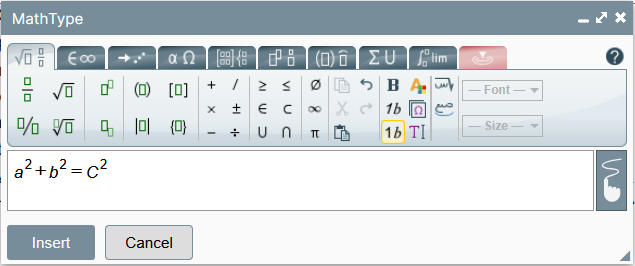
There are three ways to use the MathType Editor- Use the tabs to find the correct math symbols, functions, and characters, and select them as you build the equation.
- Copy and paste MathML directly into the MathType window.
- Hand-draw the equation by clicking on the
 icon on the right side of the MathType window. In the lower-right portion of the MathType window, you will see what your resulting equation will look like when presented on the webpage.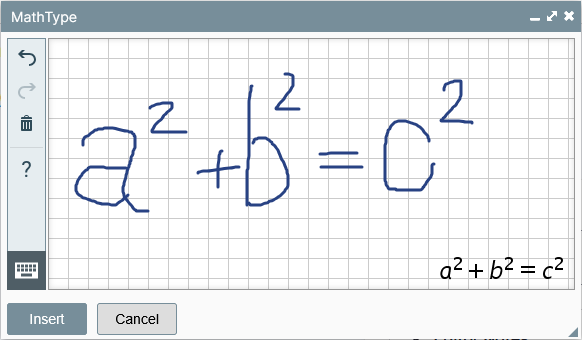
- Click Insert to add the equation to the page.
- Save the page.
Add free‑standing block equations
Use block equations when math:
- Appears between paragraphs
- Needs emphasis or spacing
- Requires an equation number
Example of a free-standing equation
Steps
- Place your cursor where you want to add an equation, typically between paragraphs.
- Open Templates dropdown menu (
 ) and select MathML and Figure Number (
  ).
). - Double-click on the math equation a2+b2= c2 to open the MathType window.
- Edit/create your new equation in the MathType window.
- Click the Insert button when you have completed your equation.
- Update or remove the EQUATION_NUMBER that appears on the right side of the math-box-container window.
- Replace it with a number according to the course style guide.
- Double‑click and delete twice to remove the equation number.
- Save the page.
Note: If you are looking at this on a mobile-sized screen, the equation number will appear below the equation, not to the right.
Using external tools to create MathML
There are several tools you can use to create MathML code for equations, including Equatio (Mac and PC) and MathType (PC only). Contact your learning designer if you would like help learning how to use either of these tools.
Checking equation accessibility accuracy with speech text
There are two ways to check your equation and make sure it is accurately presented to those who use screen readers.
- Use Speech text
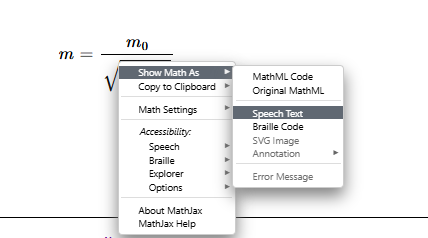
The speech text option will display what will be read by a screen reader when the equation is in focus. This allows you to verify that the numerators and denominators, exponents and subscripts, etc., are correct.- Go to the webpage that contains your equation. Do not select edit.
- Right-click on the equation.
- Hover over Show Math As
- Select Speech Text
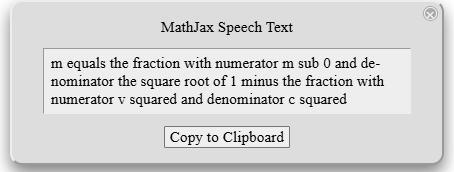
- Install and use a screen reader to view your course webpage. The learning design team can help you get started with a screen reader.
Editing an equation
Editing the MathML code for complicated block equations can be difficult. The design team is available to assist as needed. If you do not have time to wait for the designer, the best option is to recreate the equation from scratch using the math equation () tool.
Getting help
Ask your Learning Designer if:
- The equation is long or complex
- You need aligned or multi‑line equations
- You are unsure whether symbols are accessible
Your Learning Designer is your resource for both pedagogy and technical support, including Drupal. Contact them anytime for guidance on creating effective and accessible learning experiences.